
Chrome Setup Guide
Enable ECH to bypass ISP blocks and stream without restrictions
Overview
Experiencing Access Issues? If your ISP blocks certain domains, these steps will help you bypass it and browse securely — no VPN required.
Media Recognition
This method has been covered by major tech publications:
- Trending Pie — Comprehensive tech guides
- Xataka Android — Mobile technology experts
- Genbeta — Spanish tech authority
- El Androide Feliz — Android specialists
- Menéame — Technology community
Enhanced Security: ECH encrypts connection metadata, making your browsing more private beyond just bypassing blocks. Learn more →
Requirements
Important: Chrome must be updated to at least version 117 or higher.
- Platform: Works on PC and mobile (Android/iOS)
- Browser: Google Chrome (latest version recommended)
- Time: 5–10 minutes
- Difficulty: Beginner-friendly
Step-by-Step Setup
1
Access Chrome Flags
Type the following into Chrome's address bar and press Enter:
chrome://flags
This opens Chrome's experimental features panel.
2
Enable ECH Features
Search for and enable both of these flags:
encrypted-client-hellouse-dns-https-svcb-alpn
Set each to "Enabled" using the dropdown.
3
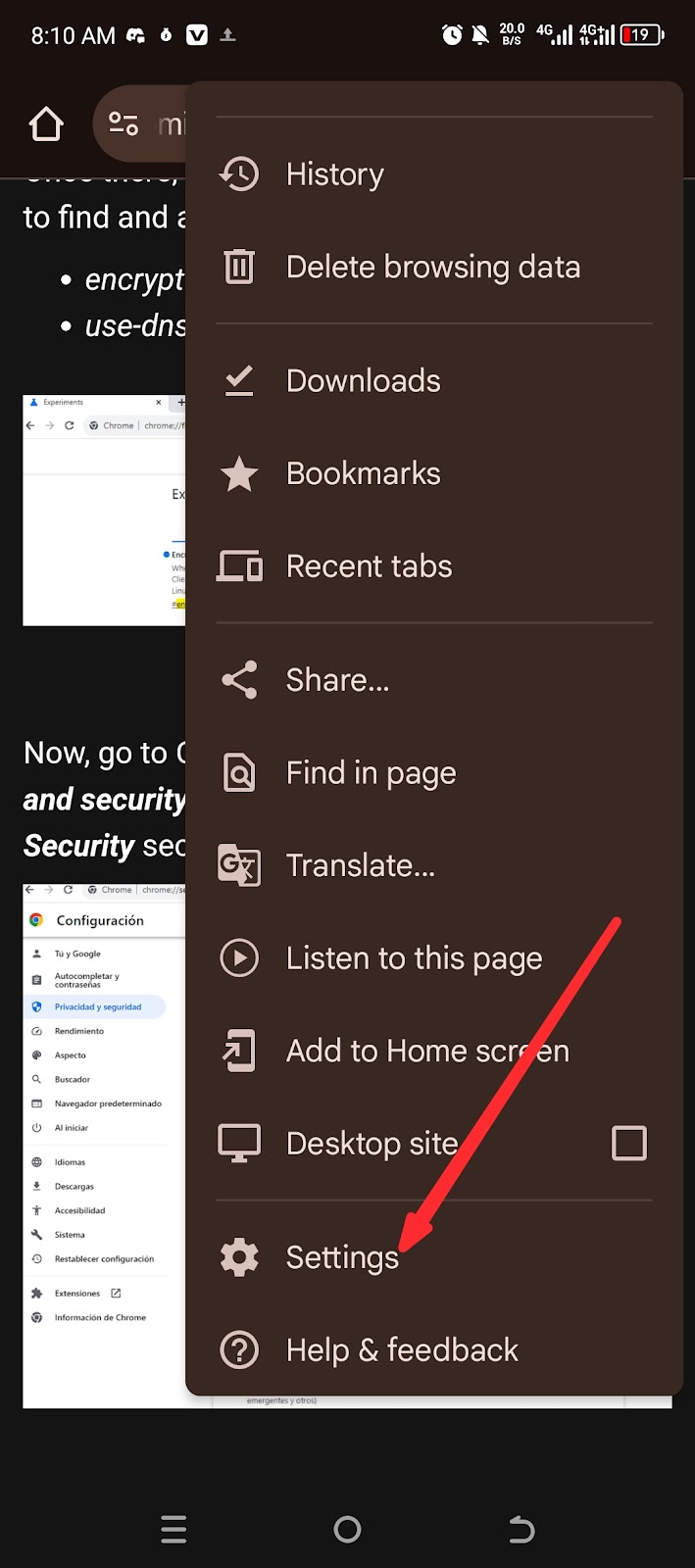
Open Security Settings
Go to Chrome Settings → Privacy and Security → Security


4
Enable Secure DNS
In the Security section, turn on "Use secure DNS" and pick a provider:
- Cloudflare — Recommended for speed
- Google — Alternative option

5
Restart Chrome
Close Chrome completely and reopen it. Done! You can now browse without restrictions.
Verification
Verify Your Setup
Confirm ECH is active by visiting the test page:
You should see a confirmation that ECH is enabled:

Benefits
Additional Benefits
Universal Access: This setup works beyond Cineby — it unblocks any site your ISP was restricting. 🌍
- Enhanced Privacy: Your browsing activity is better protected from snooping
- Improved Security: ECH encrypts connection metadata at the TLS layer
- Bypass Censorship: Access geo-restricted and ISP-blocked content freely
- No Performance Impact: ECH and Secure DNS have negligible effect on speed
Troubleshooting
Troubleshooting
- Still blocked? Clear Chrome's cache and retry in an Incognito window.
- Flags not visible? Make sure Chrome is up to date — some builds behave differently.
- ECH test shows disabled? Switch DNS provider (Cloudflare ↔ Google) then retest at tls-ech.dev.
- Mobile issues? Ensure Android/iOS Chrome has the latest system update; some builds lag behind desktop.